 PadVibe
A soundboard for podcasters
Keep your intros, stingers and music beds one tap away, so the show keeps its rhythm and you keep your focus.
Editing jingles into a recording takes time. Playing them live as you talk keeps the pacing natural and saves the edit.
PadVibe gives every sound its own pad. Loop a music bed, fire a stinger on a key press, and fade levels with a fader mapped to a hardware slider. If you use a RODECaster Pro, its pads can trigger PadVibe over MIDI.
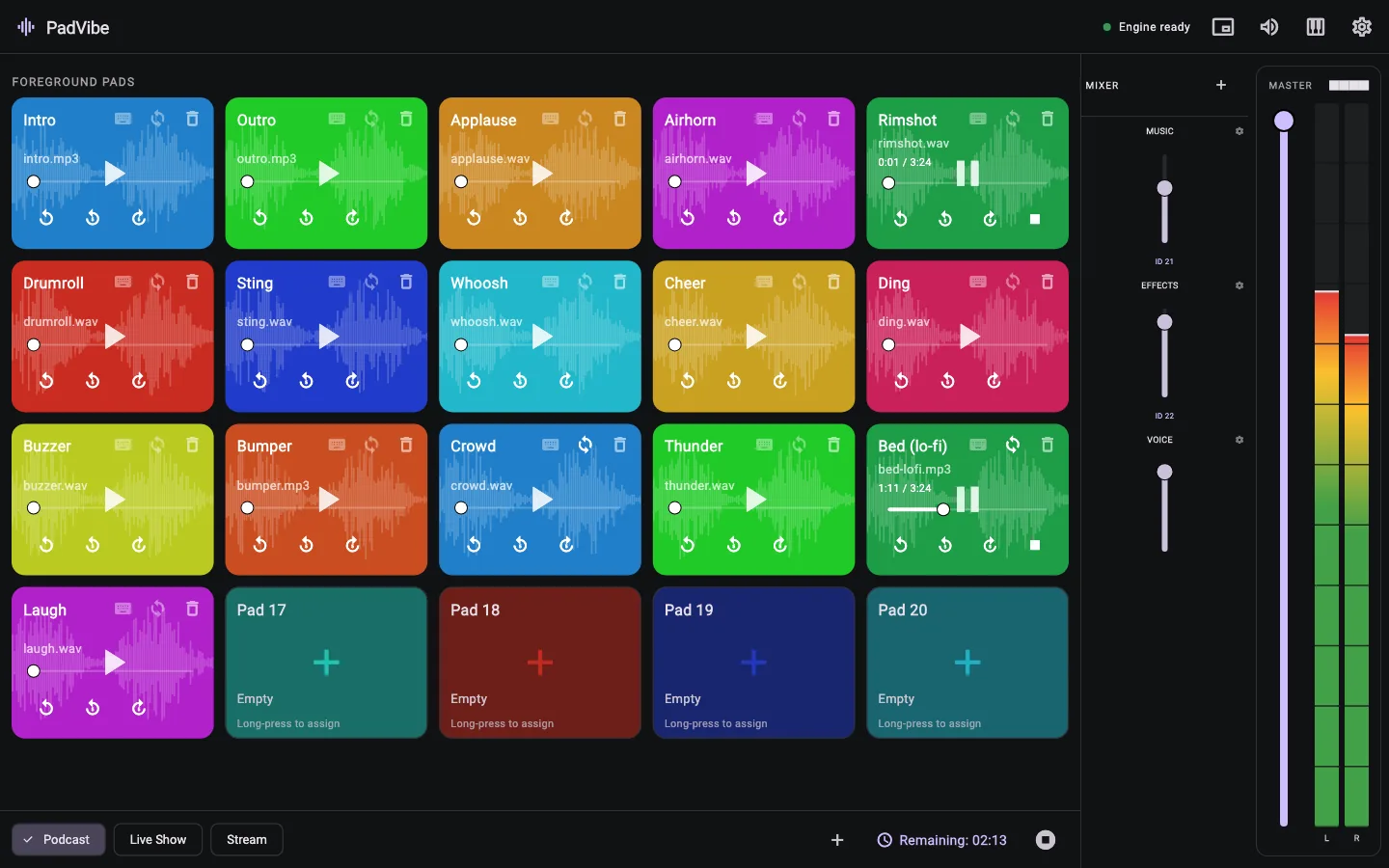
A working setup in five minutes
Add your sounds
Drop your intro, outro, stingers and beds onto pads. Name and colour them so you can find them at a glance.
Set loops and levels
Turn on Loop for beds. Link beds to a Music fader and effects to an Effects fader.
Choose triggers and output
Assign keys or learn MIDI notes. Pick the output that feeds your mixer or recorder.
Tips from the way PadVibe works
- Put long beds on a looping pad, mark it as a background pad, and link it to a Music fader so you can duck it under your voice.
- Use tabs to keep a bank per segment or episode.
- Use the countdown timer to see how much of a clip is left before you need to speak.
- To record PadVibe together with your voice, send it to a mixer channel on your audio interface, or capture a virtual device such as BlackHole or VB-Cable in your recording software.
- Keyboard keys work while PadVibe is the active window. For hands-free triggering, use a MIDI controller.
Common questions
Does PadVibe record my podcast?
No. PadVibe plays sound. Record with your usual software and feed PadVibe into it through your audio interface or a virtual audio device.
Which file types work?
MP3, WAV, OGG and FLAC.
Can I trigger sounds from my RODECaster Pro?
Yes. PadVibe supports RODECaster Pro pad messages over MIDI, so its pads can trigger PadVibe pads.
Is it really free?
Yes. There is no account, subscription or paid tier.
Free to download. Ready in a minute.
No account, no subscription, no tracking. Install it, drop in a few sounds and hit a pad.